

Parmonic
|
December 10, 2025
|
Product Updates
A solid knowledge base is one of the most underrated growth drivers in B2B.
Great help articles reduce support tickets, speed up onboarding, and give customers the confidence to figure things out on their own. They also make life easier for sales, CS teams, and account managers, who are constantly answering the same "quick questions."
But creating these help articles is a slow process, sometimes messy, and most certainly resource-heavy. In short, it's a grind.
Someone has to understand the product deeply, craft clear steps, capture screenshots, and format everything so it’s actually usable. Most teams don’t have a dedicated technical writer. We know that marketers are stretched thin. Product managers don’t have the time. And customer success teams know the content - but not always how to package it into polished documentation.
Meanwhile, your company is already recording tons of instructional content - demo calls, customer training sessions, onboarding walk-throughs, internal enablement videos. These videos contain everything a help article needs: the flow, the explanation, the steps, and the real-world context.
The smartest move? Turn those videos directly into help docs instead of writing from a blank page.
That’s where Parmonic comes in. One line of instruction in our Writer module can replace hours of writing and turn your instructional video into a polished help doc in seconds - not even minutes.
It's perfect for B2B teams trying to scale customer education.
Here's how to create a help doc in Parmonic.
Choose your video: Let's take this fantastic video from HubSpot, HubSpot's Content Hub Tutorial, where Thomas Hutchings explains in detail how to build, customize, and optimize a site using HubSpot’s powerful Content Hub platform.
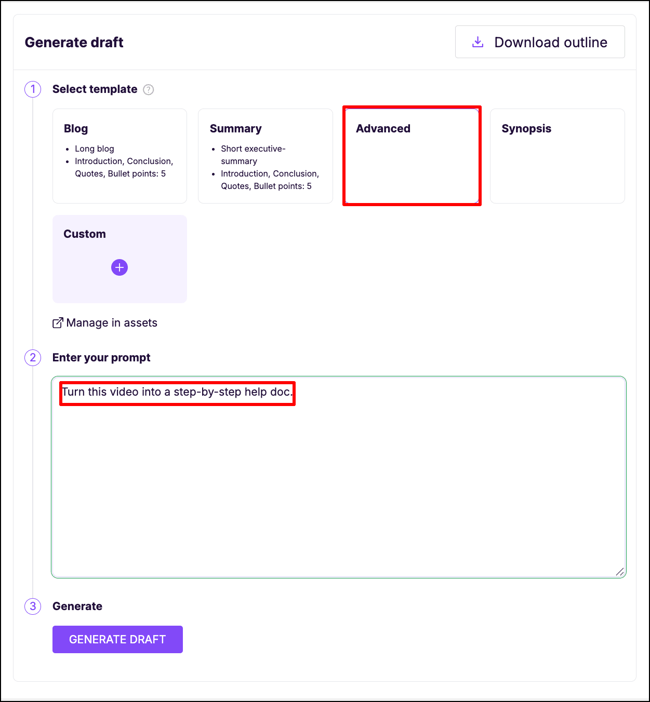
Log in to your account >> Upload/Link your video >> Go to Writer Module (Advanced Option) >> Add a prompt "Turn this video into a step-by-step help doc."
That's it!
Here's the help article that the Writer module created in less than 5 seconds.
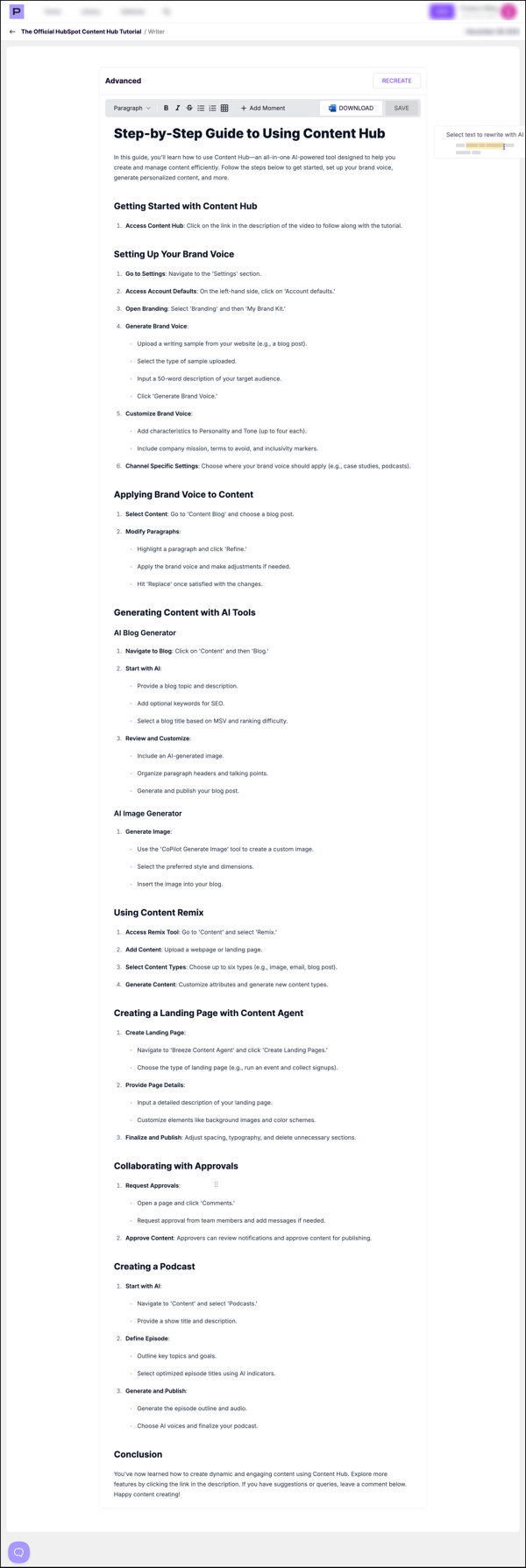
You can customize the help article to fit the brand voice by hitting the 'Recreate' button and editing the prompt.